
ESO Reports

One clear view of what to do Next
See what needs attention. Share what matters. Track what changes.
Website audits can uncover a lot. ESO Reports helps you turn those findings into a clearer next step—whether you want a quick priority list, a familiar report, a view tailored to your needs, or a comparison with an earlier report.
Bring search, website health, accessibility, content, performance, and other supported findings into a reporting workflow that helps your team focus and move forward.
*Reports and metrics available to you depend on the completed audits, your account, and your plan.*

Your website reports, made easier to act on

Schedule a free consulation to discuss your website reports and next steps.

Choose the report that fits your question

Top Action Items
Start with the next best actions
Not sure where to begin? Top Action Items brings notable findings together and helps you focus on issues that may deserve attention first.

See the affected area, the reported impact, and the priority or severity assigned to a finding. Depending on your audit results, recommendations can cover topics such as search visibility, page titles and metadata, broken links, performance, accessibility, spelling, and structured data.

Use the list to decide what to investigate, assign work to the right people, and open the relevant detailed report for more context.

Why it helps
– Spend less time searching through separate reports for a starting point.
– Focus on issues with visible impact in your latest audit data.
– Give marketing, content, and web teams a shared list of follow-up work.
– Move from a summary to the detailed report when you need more information.

Top Action Items are recommendations based on available report data. They are a guide for prioritization, not a guarantee of ranking, accessibility, performance, or business outcomes.
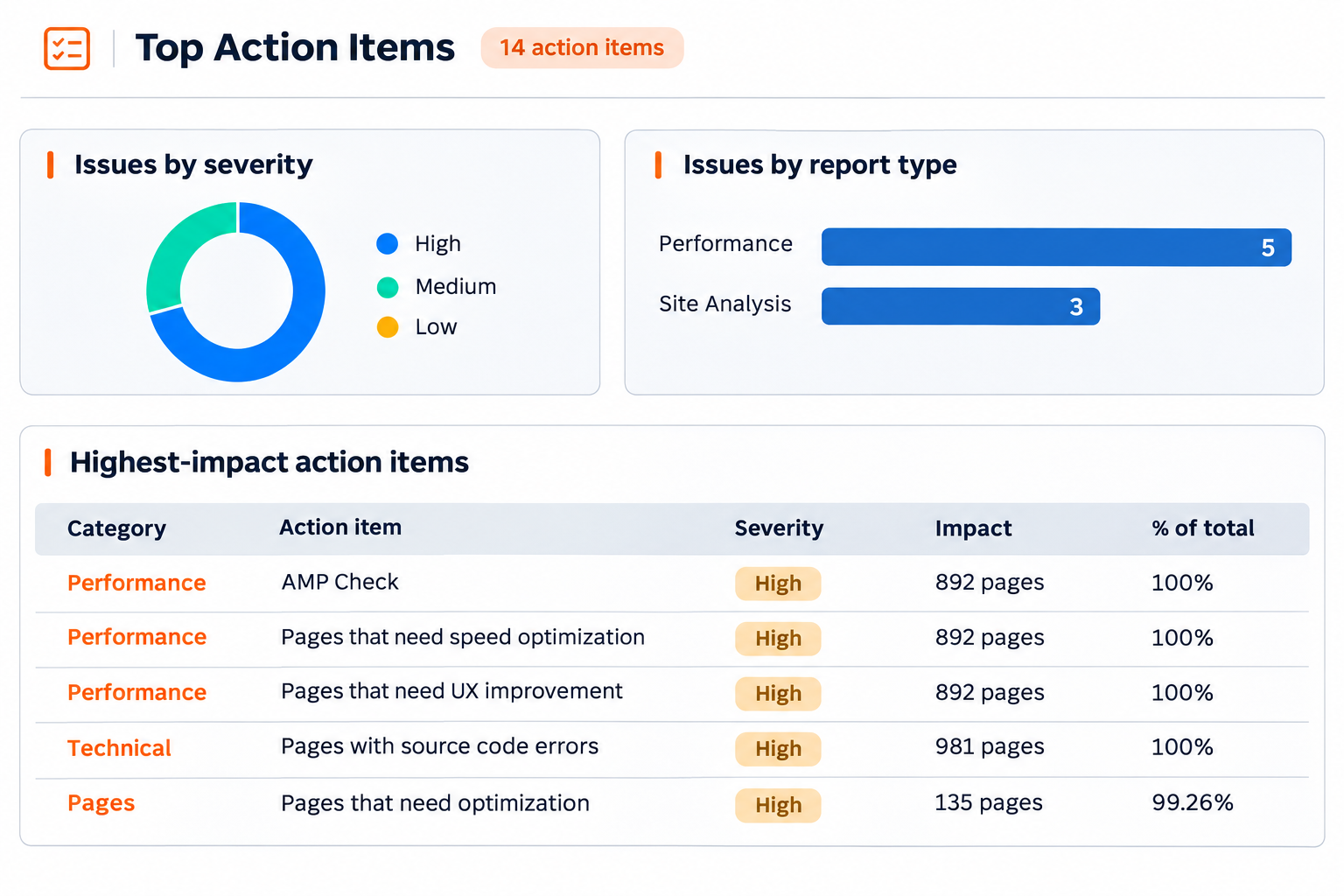
Top action items insights dashboard
Standard Reports
Choose the report that fits your question
Use ESO’s ready-made reports to review common website and search signals in a consistent format. Standard Reports make it easier to get a quick overview without first building a custom layout.
What you can review

Depending on the reports completed for your website, standard reporting may help you review:

– Search rankings and keyword movement
– Site audit and on-page findings
– Broken links and page health
– Schema and source-code validation
– Accessibility checks
– Content and spelling findings
– Performance signals

Open a report for the details behind the summary, then use its available filters or exports to support your review.
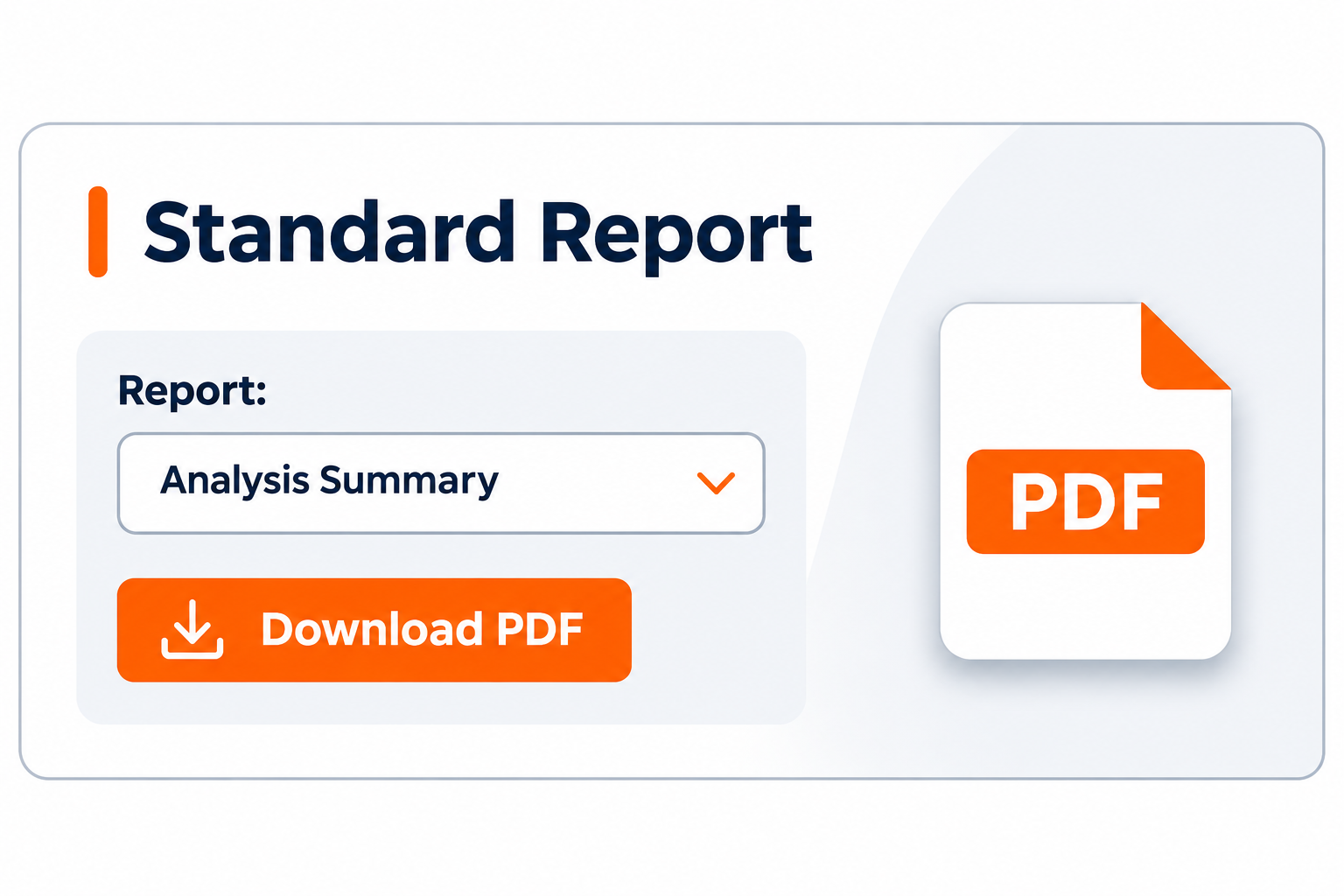
*Confirm the exact report list, filters, and export formats available to each plan before publishing this section.*
Standard Report PDF download card
Custom Reports
Make the report your own
Choose the report type, the metrics or columns you want to focus on, and the completed report dates you want to review. Custom Reports help you bring selected information into one view that is easier to share with a stakeholder or revisit during planning.

For example, you can build a view around ranking performance, content readability, accessibility, schema, page analysis, or other supported report data—and choose the available fields most relevant to your question.

Create a report that answers your question:
1. Select a report category.
2. Choose the available metrics or columns to include.
3. Select one or more completed report runs.
4. Review the results together in a table or chart where available.
5. Export or share the report using the formats available in your account.

Custom Reports use completed ESO report data. What you can select depends on the report type and the information available for the selected runs.
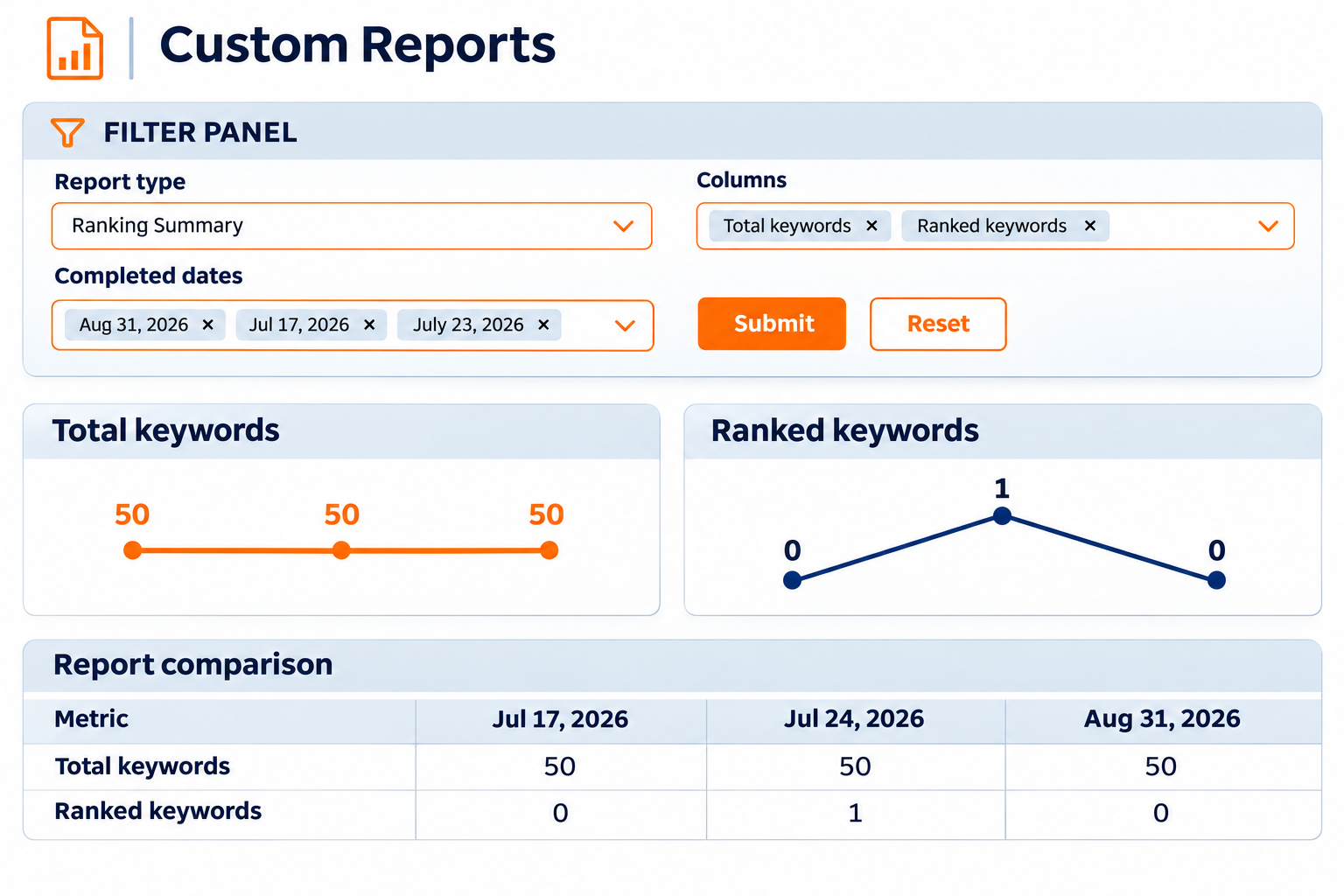
Custom reports dashboard with charts and table
Report History
Find the report you need, when you need it
Report History gives you a record of recent report activity for your website. See which reports are new, in progress, or completed, who or what started them, and when they ran.

Use the history to check whether a report is ready, return to a completed result, and understand when the latest website review took place.

Report History can help you:
– See report status at a glance.
– Check when a report started and completed.
– Review recent activity across supported report types.
– Find the latest completed result before comparing or sharing findings.

Report availability and retention can vary by plan and account settings.
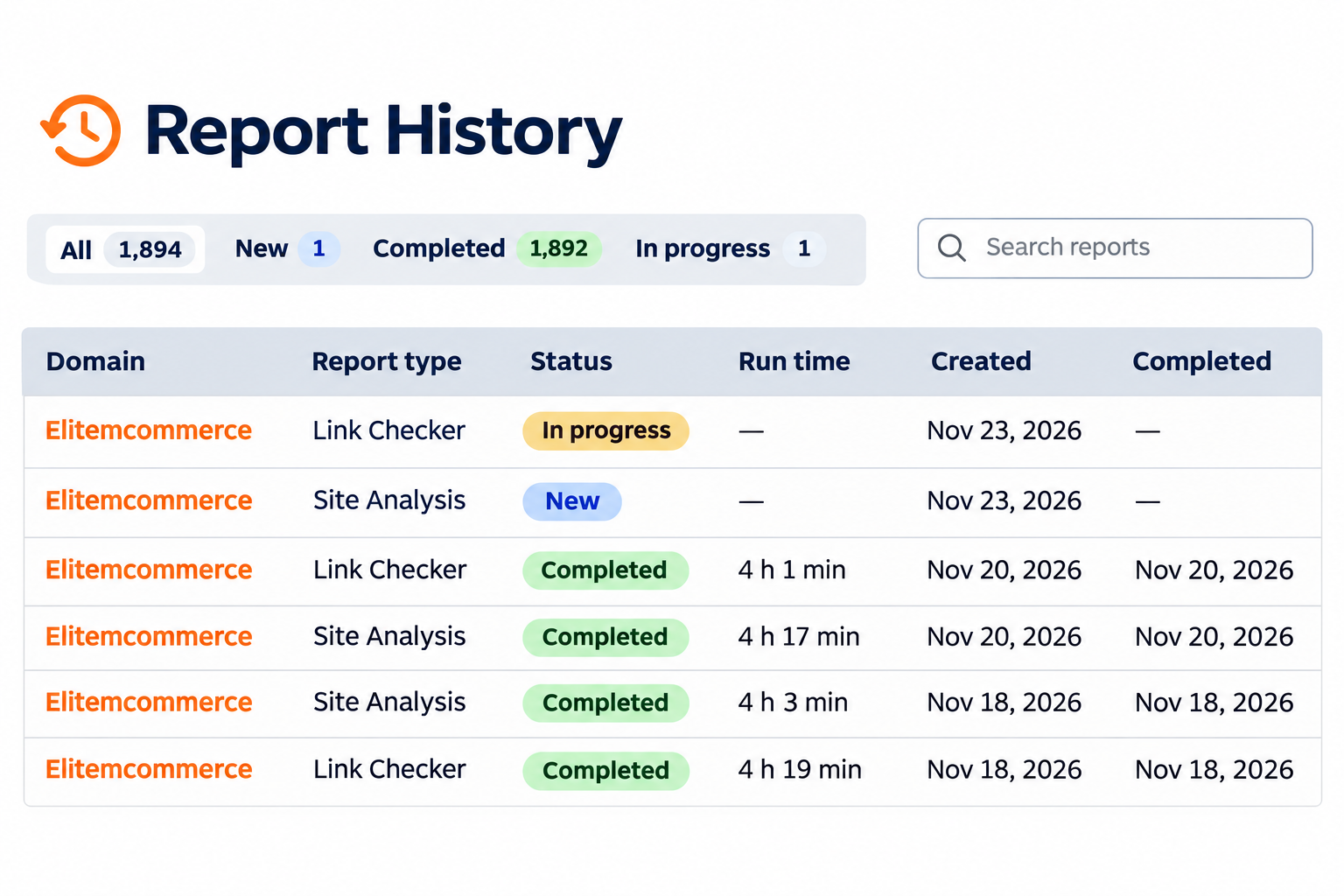
ESO report history dashboard
Consolidated Error Report
See how reported issues change over time
Want to know whether a website issue count is moving in the right direction? The Consolidated Error Report compares selected completed report runs and brings supported issue totals into one view.

Compare recent and earlier results for categories such as site audit findings, schema, source-code validation, accessibility checks, links, spelling, and keyword rankings—when those reports are available for the selected runs.

Use the comparison to:
– See whether reported issue counts have increased or decreased.
– Review changes across supported issue categories.
– Identify areas that may need a closer look.
– Share a concise progress snapshot with your team.

The comparison reflects the data collected in the selected reports. Differences in crawl coverage, settings, or report availability can affect the totals, so compare like with like whenever possible. A lower issue count does not, by itself, prove that every underlying issue is resolved.
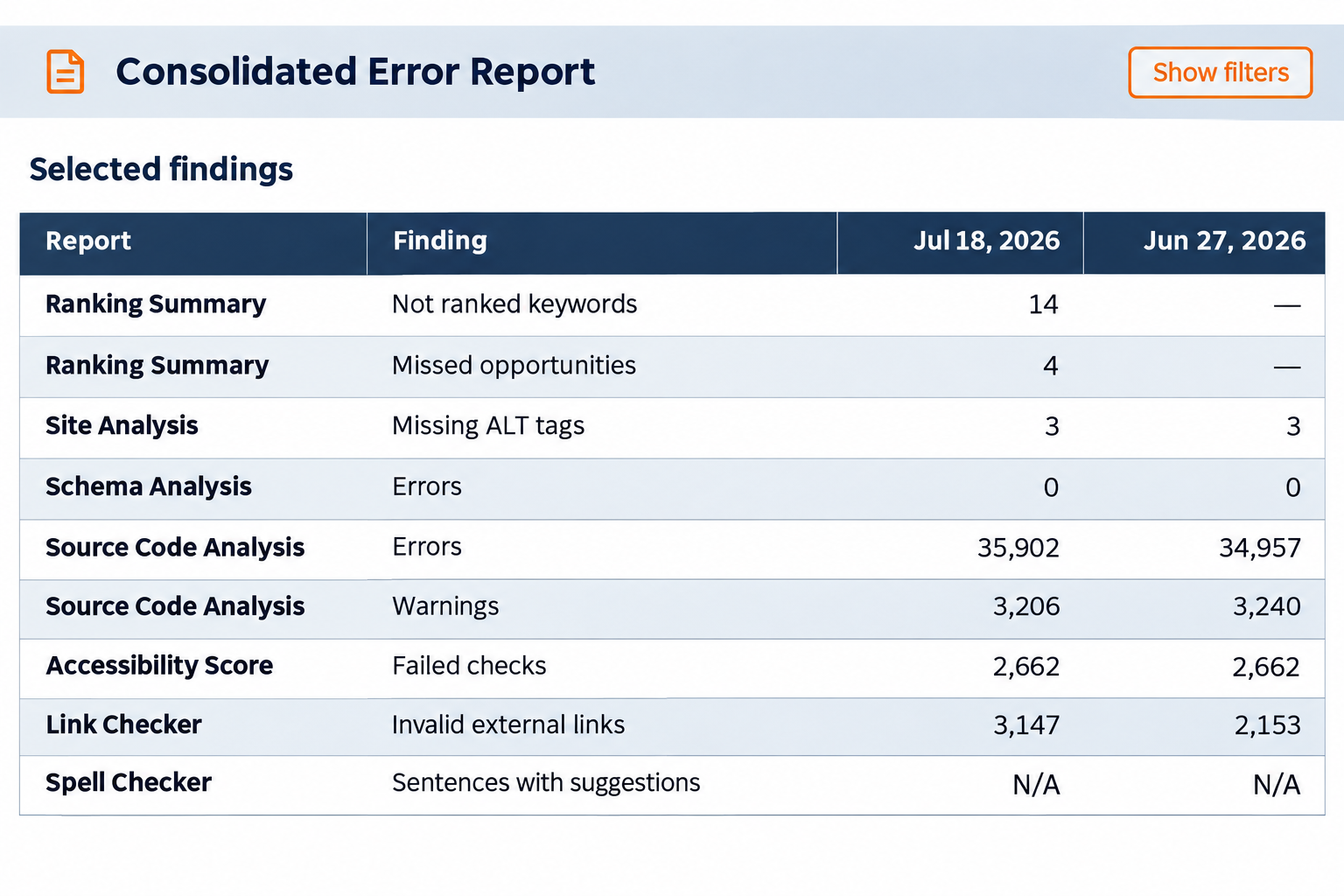
Consolidated error report findings table

A simple reporting workflow

Run the audits you need

Choose the relevant ESO checks for your website and wait for the reports to complete.

Get oriented

Start with Top Action Items for a priority-led overview, or open a Standard Report for a familiar view of a specific area.

Focus the view

Use a Custom Report to choose relevant metrics and report dates, or use Report History to find a previous run.

Compare and plan

Use the Consolidated Error Report to compare supported issue counts between completed report runs. Open the detailed report before deciding what action to take.

Revisit progress

Run the relevant checks again after changes and compare reports using consistent settings and coverage.

Reporting for the people behind the website

– Marketing and SEO teams can bring search visibility and page findings into planning.
– Content teams can focus on readability, spelling, metadata, and page-level recommendations.
– Web teams can use technical findings to identify pages and issues for review.
– Accessibility teams can organize detectable findings and track reported changes alongside manual evaluation.
– Managers and clients can review summaries and selected metrics without starting from multiple detailed reports.

Frequently asked questions

What is the difference between Standard and Custom Reports?

Standard Reports provide ready-made views for common report types. Custom Reports let you select a supported report, choose available metrics or columns, and select completed report runs to create a view that fits your needs.

Does Top Action Items fix issues automatically?

Top Action Items highlights findings and recommendations to help you decide what to review. It does not mean every issue is automatically fixed. Some ESO workflows may offer separate suggested fixes or remediation tools.

Can I compare reports from different dates?

Yes, supported report workflows can show completed report runs over time. The Consolidated Error Report compares selected runs for supported issue categories; Custom Reports can also use selected completed report dates.

Why might a metric be unavailable?

A report may not have completed, the selected audit may not include that metric, or the data may not be available for that report run. Check the report status and its detailed results.

Does a lower error count mean my website is fully fixed?

Not necessarily. A count is a signal from a particular report run, not a complete assessment of every page or issue. Review the detailed findings and compare reports with consistent crawl settings and coverage.

Can I download or share reports?

ESO supports downloadable reporting for eligible reports and accounts. Available formats depend on the report and plan. Confirm the current formats in the product before relying on a specific export option.

Are automated accessibility findings a compliance certification?

No. Automated checks identify some detectable issues but cannot evaluate every accessibility barrier. Manual testing and assistive-technology evaluation may also be necessary.

Turn report findings into a clearer plan

Start with the issues that matter to your goals, build a report for the people who need it, and revisit your results as your website changes.